
FAQs
How do I select areas in my Prima camera video feed that will detect motion activity?
To define areas in the Prima camera video feed that will detect motion activity (called "Motion Zones"), proceed as follows:
- In the Prima Super Panel home screen, tap the Settings ("hamburger") icon at the top left corner.
- Enter your Master passcode to access the Settings screen.
- Tap Devices.
- In the list of Groups or Devices, tap the video device you wish to adjust. If you selected a Group of devices, continue to select the devices until you select (tap) the specific camera you wish to adjust.
- Tap Motion Detection > Motion Zone.
- To create your first "Zone 1" Motion Zone, tap the "+" sign at the top right to add a moveable and adjustable bounding box to the screen. A rectangular bounding box appears on the screen (example shown below).
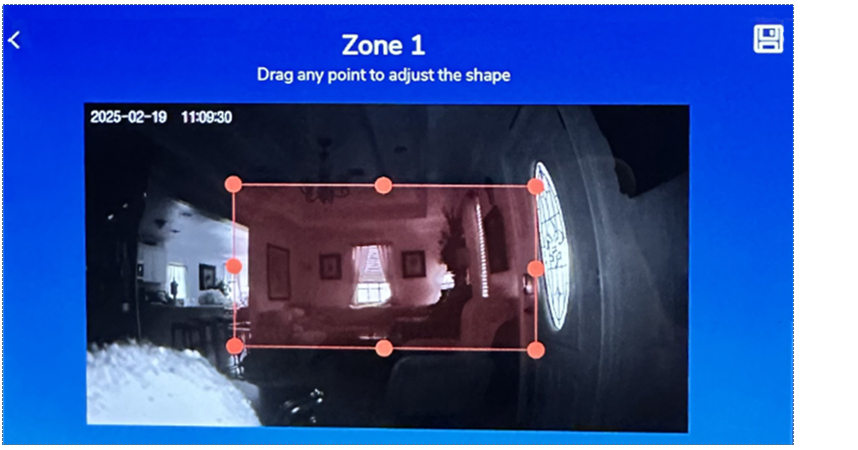
With your finger, move and adjust the bounding box to the area to you wish detect motion activity. After making the selection, tap the Save icon at the top right corner of the screen.
- The system provides an opportunity to name the Motion Zone. Type a descriptive name and tap the "check" icon to save. To add another Motion Zone to the same camera feed, repeat steps 5 - 8.
- When finished, tap the Home button at the bottom of the Super Panel.
Motion Zones are beneficial because they reduce the number of unneeded motion triggers that use more of your monthly clips than needed.